

Selecting a report
Navigate to the Reports page from the sidebar.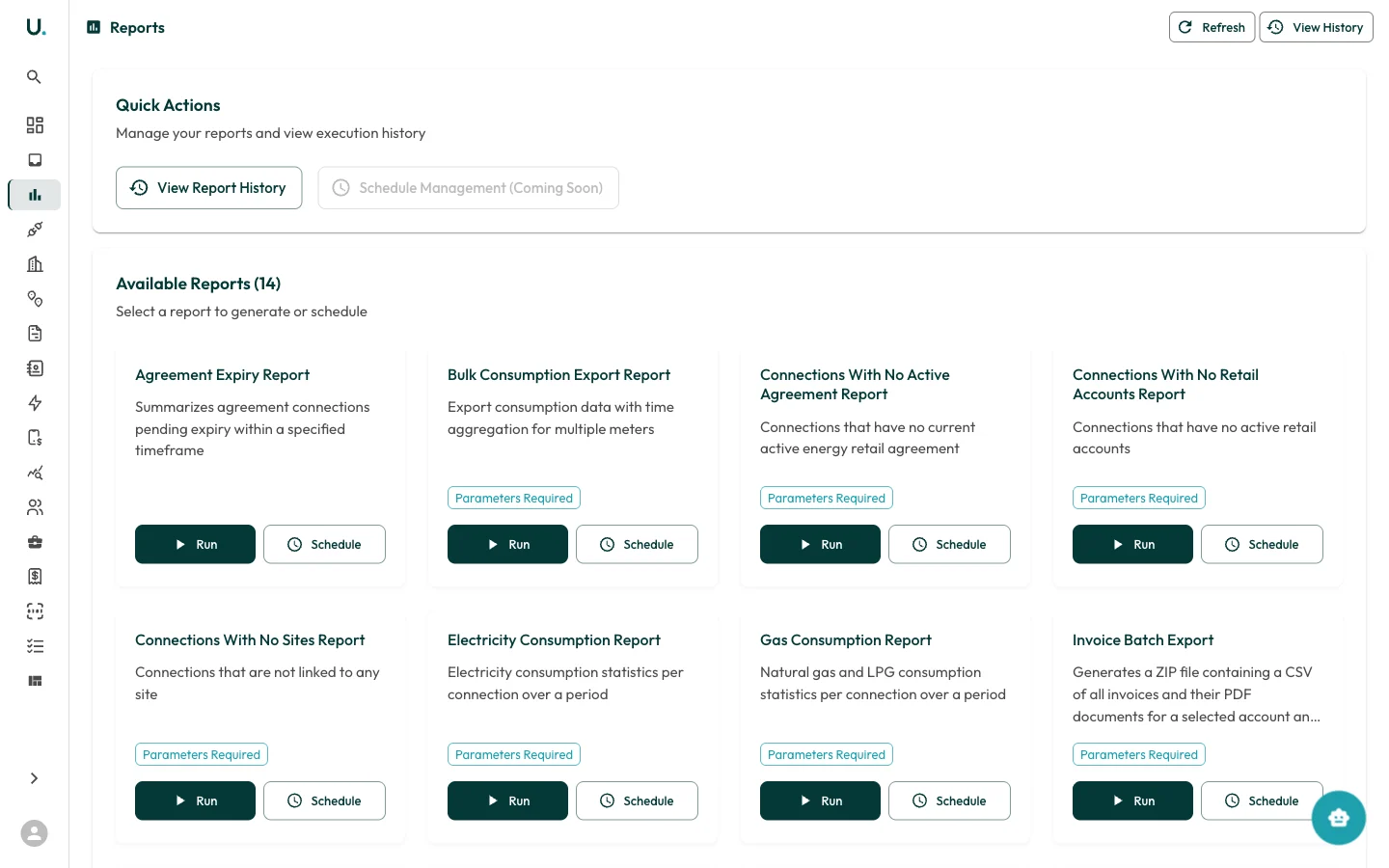
- Report name and description
- Parameters Required badge (if the report needs configuration)
- Run button — Generate the report immediately
- Schedule button — Set up recurring generation
Running a report
Configure parameters
If the report requires parameters, a configuration form appears:
- Date range — Start and end dates for the report period
- Accounts — Filter to specific accounts
- Connections — Filter to specific meter connections
Downloading results
Available reports
| Report | What it shows |
|---|---|
| Agreement Expiry Report | Connections with agreements expiring in a specified timeframe |
| Bulk Consumption Export | Consumption data across multiple meters with time aggregation |
| Connections With No Active Agreement | Connections missing a current energy agreement |
| Connections With No Retail Accounts | Connections without active retail accounts |
| Connections With No Sites | Connections not linked to any site |
| Electricity Consumption Report | Electricity usage statistics per connection |
| Gas Consumption Report | Gas usage statistics per connection |
| Invoice Batch Export | ZIP of all invoices (CSV + PDFs) for an account and date range |
| Invoice Gap Report | Missing invoices detected per retail account |
| Invoice Report | Invoice summary over a period for specific accounts |
| Metering and Energy Agreement End Date Report | Agreement end dates grouped by connection |
| Monthly Spend Accrual Report | Monthly spend with projections for incomplete months |
| Retail Account Transfer Report | Retail accounts in transfer or pending states |
| Water Consumption Report | Water usage statistics per connection |