

Open user management
User management lives on the Users tab of the Settings area.
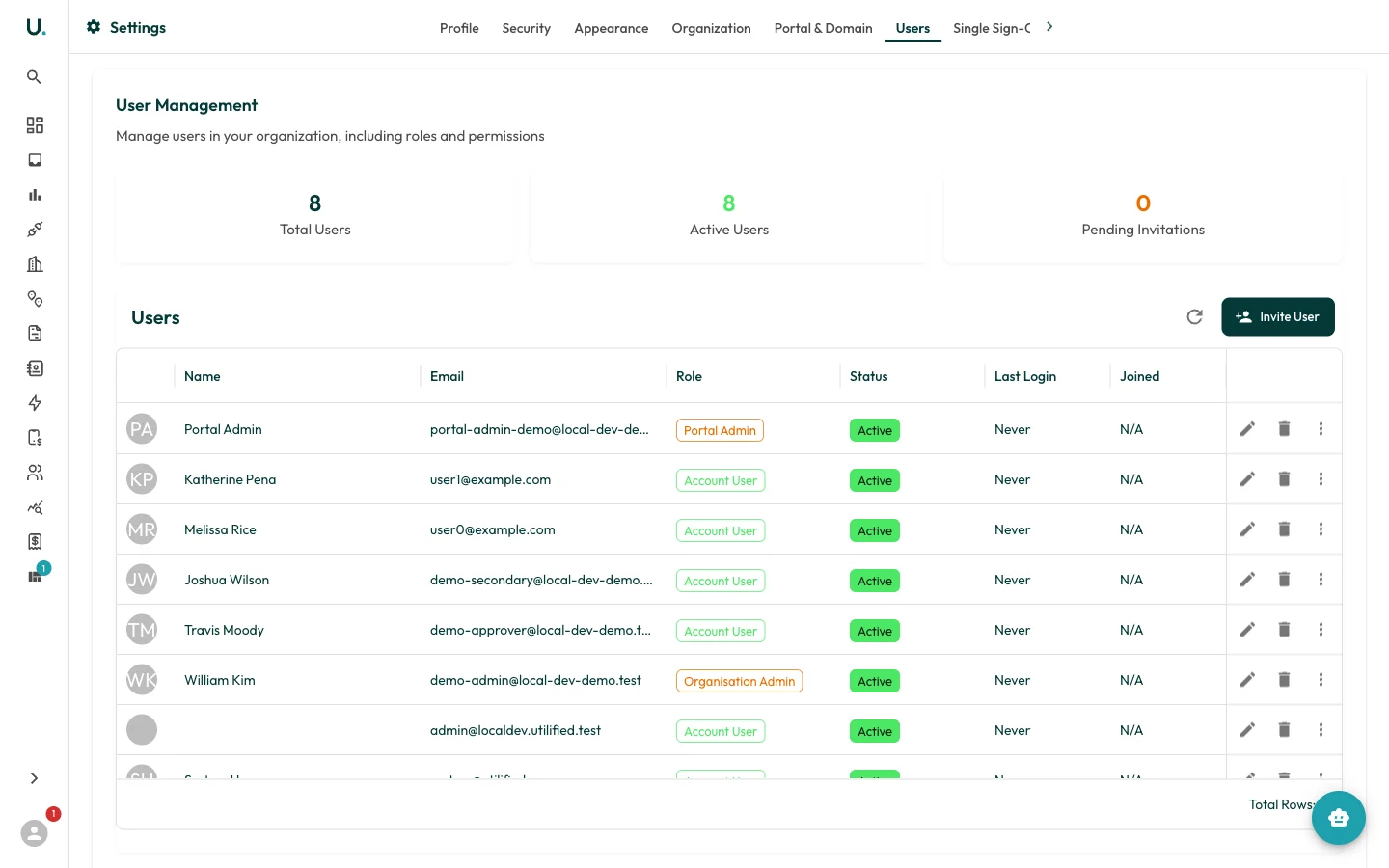
The Users tab shows three summary cards — Total Users, Active Users, and Pending Invitations — above a table of everyone in your organisation, with their role, status, and last login.
Invite a new user
Start an invitation
Click Invite User in the top-right of the Users card. This opens the Invite New User wizard.
Enter user details
On the User Details step, enter the new user’s First Name, Last Name, Email Address, and Phone Number. The invitation is sent to the email address you enter here.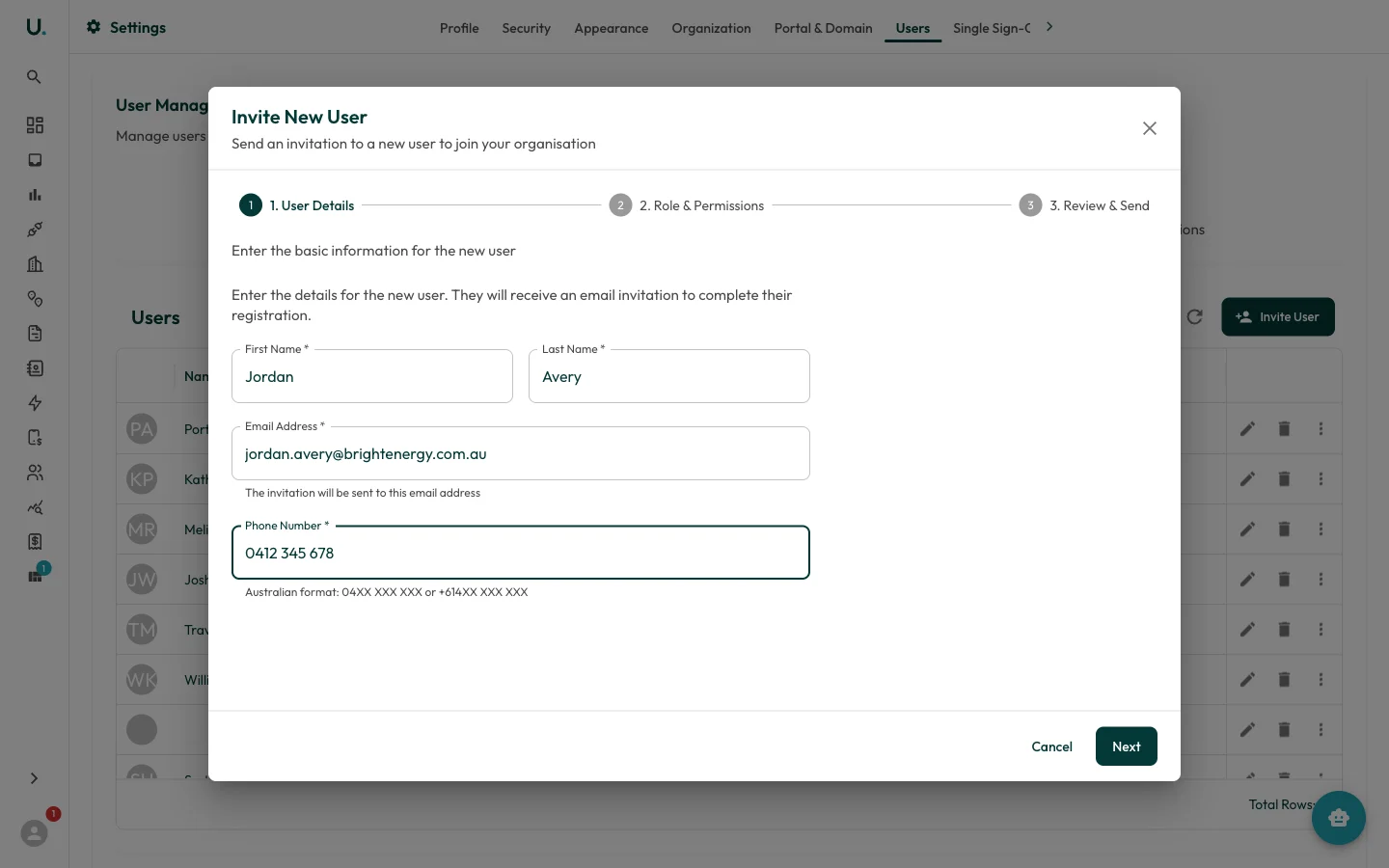
Phone numbers use Australian format —
04XX XXX XXX or +614XX XXX XXX.Choose a role
Click Next to move to Role & Permissions, then select a Role. Permissions are assigned automatically based on the role, and the matrix below the dropdown previews exactly what the role can create, read, update, and delete across each application.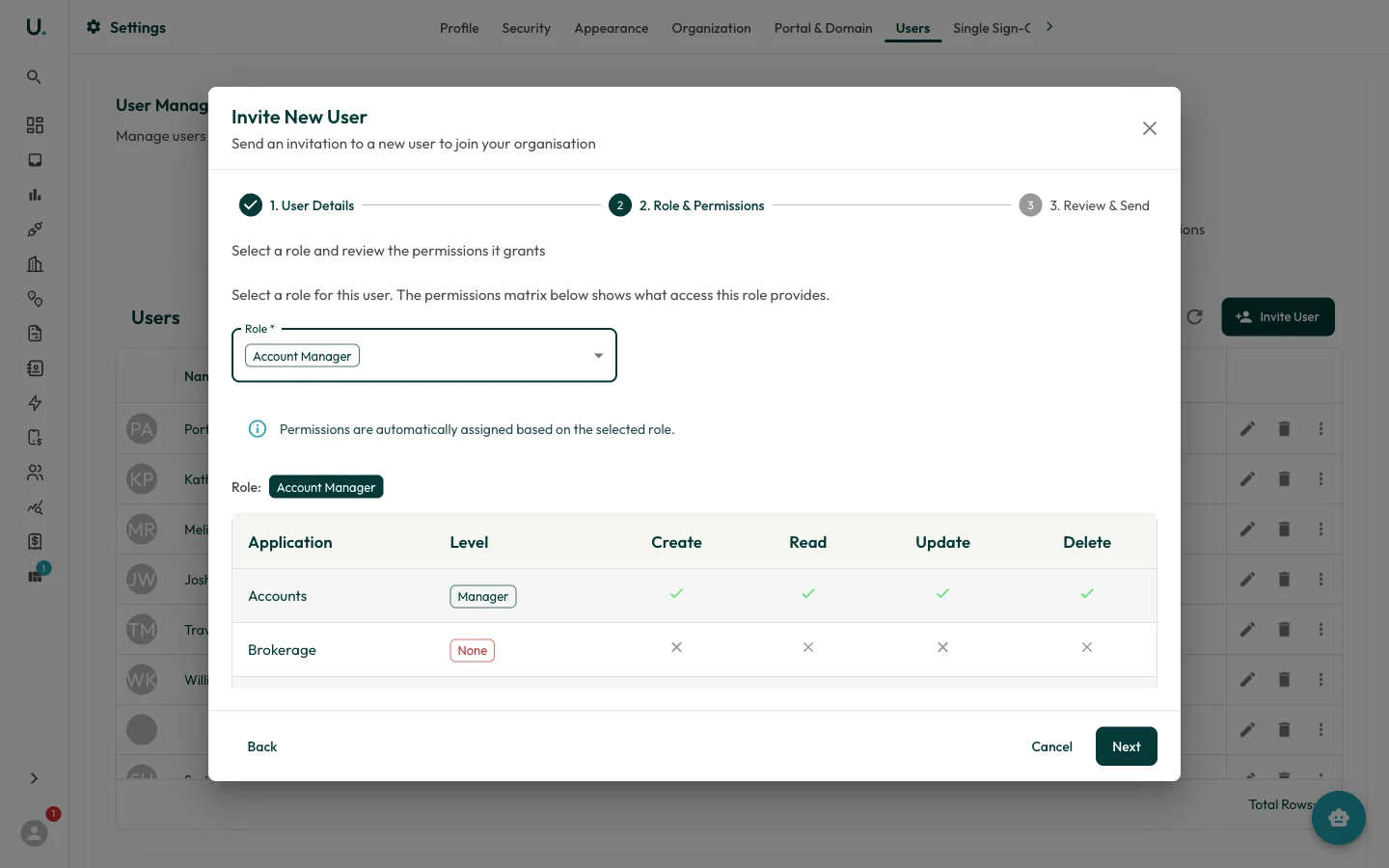
User roles
The role you choose controls what the user can access. UMS provides the following roles:| Role | Typical use |
|---|---|
| Organisation Admin | Full administrative access, including user management |
| Account Manager | Manage accounts, sites, connections, and agreements |
| Account User | Day-to-day work within assigned accounts |
| Account Viewer | Read-only access to assigned accounts |
| Account Operations User | Operational tasks such as invoice processing |
| Brokerage Operations User | Brokerage records and calculations |
| Portal Admin / Portal User | Access to a white-label portal account |
Manage existing users
Each row in the users table has actions for managing that user:- Edit user — Update their name, role, Active status, and which accounts they can access (on the Account Access tab).
- Resend invitation — Re-send the registration email to a user whose invitation is still pending.
- Deactivate user — Revoke access immediately without deleting the account. Use Reactivate user to restore it.
- Delete user — Permanently remove the user. This cannot be undone.
A user with a pending invitation shows a Pending Invitation status until they complete registration, after which they appear as Active.